ArcGIS Online Exercise – Exploring UM History
0. Housekeeping:
Today we will be exploring the ArcGIS Online interface by:
- Finding data that is available
- University of Manitoba Libraries Organization
- Integrating a point file
- Adjusting dataset parameters
- Discussing export options
Exploration
1. Access your workspace:
- Navigate to UM’s ArcGIS Online Portal https://univmb.maps.arcgis.com
- Log-in by entering your UM email and password.
- The Home page is your Landing Page.
- Enter your username on the sign-in sheet at the front of the room for attendance and to be added to the datasharing group
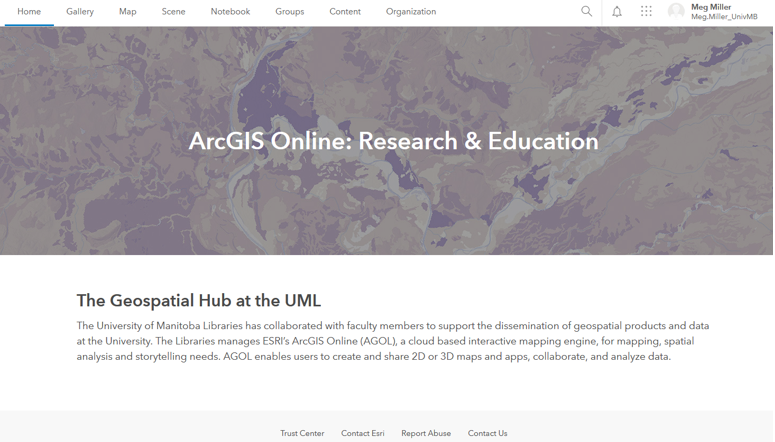
2. Explore AGOL Interface:
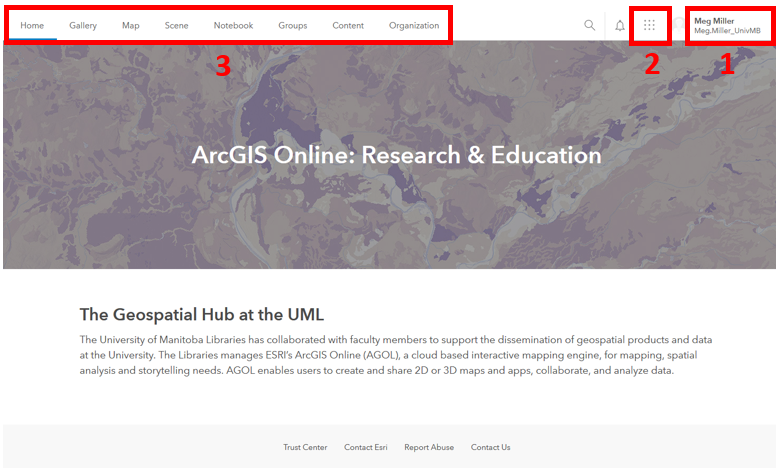
Numbers 1-3 illustrate the locations of the following elements:
- Account (includes link to training materials)
- Tools (all of the different ESRI Apps available to you)
-
Options (pages for different purposes (your content, maps, etc.)
3. Explore Training options:
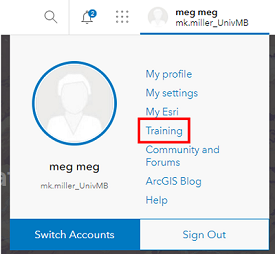
- Click on your username in the top right corner of the screen.
-
Select the Training option half way down the list.
-
At the top of the page select the Catalog option, then the Course Catalog
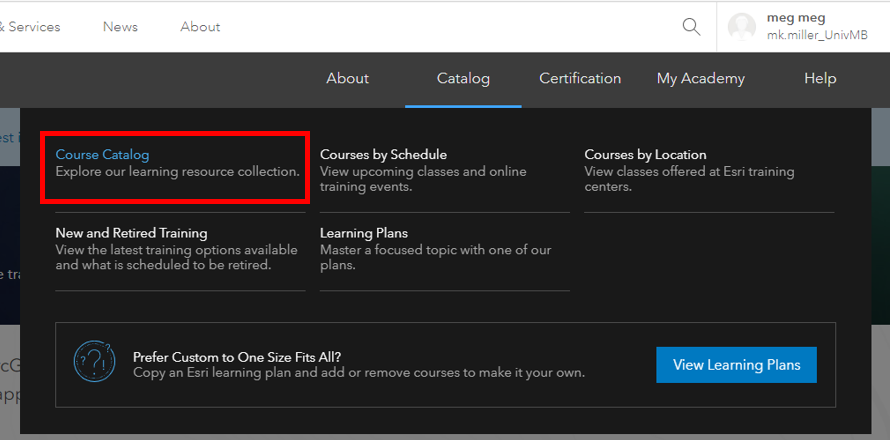
- Take a bit of time to browse through the training options available to you.
- Return to the UM AGOL Home page.
4. Explore available tools:
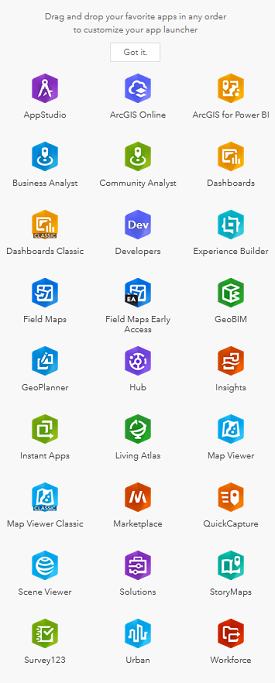
- Click on the waffle button that is to the left of your username in the top right of the screen to see the tools that are available.
- Today’s session will be focusing on ArcGIS Online (also linked in the top navigation of your Home page).
5. Explore AGOL Home options:
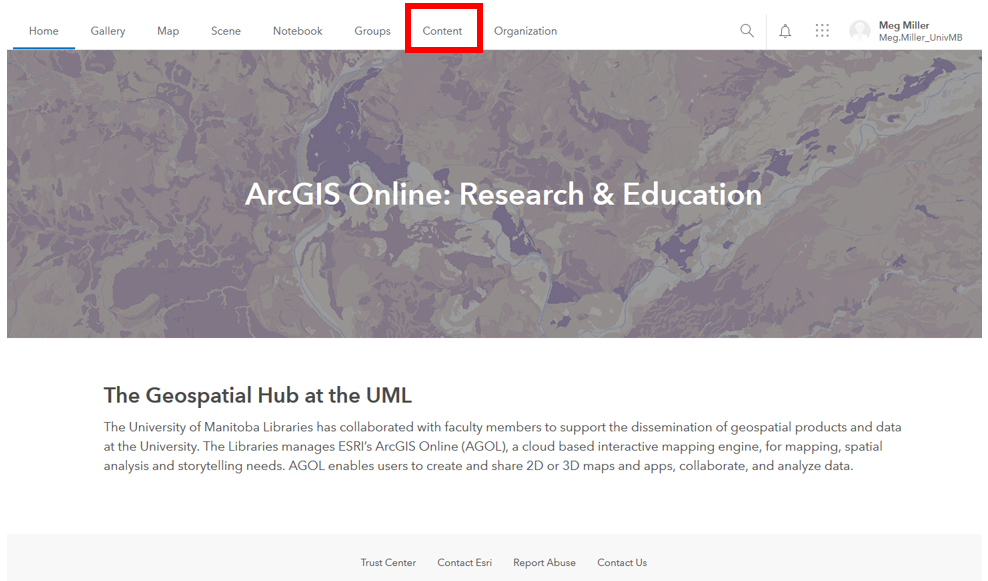
Numbers 1-2 illustrate the most useful navigation options of the Landing Page:
- Map (where to go to create a new map in AGOL)
- Content (where all of your data, objects and organizational content is stored)

Creation
1. Access your Content workspace:
- Access the Content area by clicking on that option in the top navigation.
2. Explore the Content Panel:
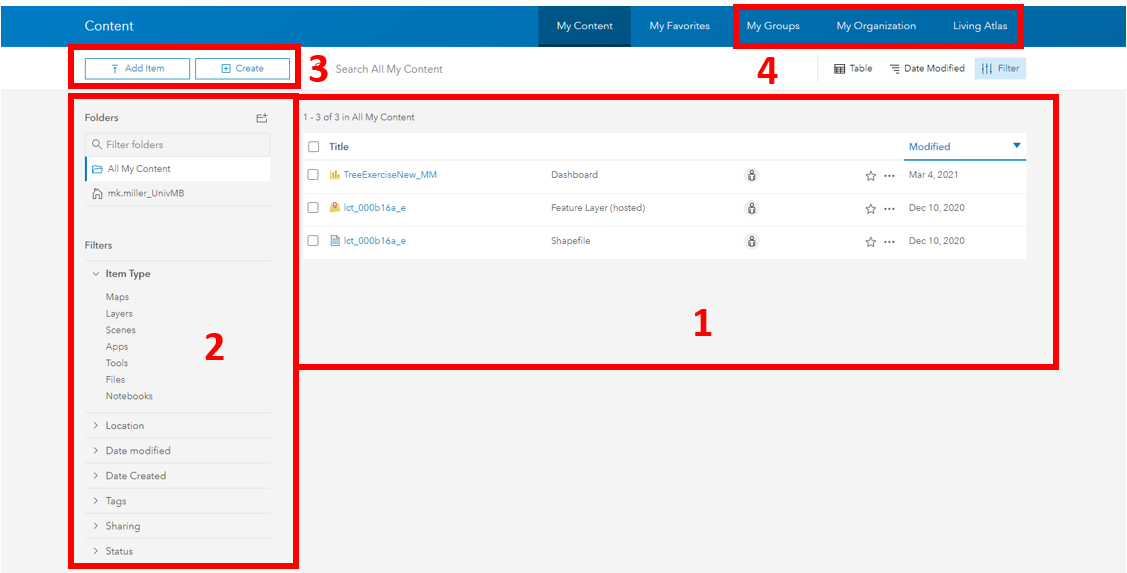
Numbers 1-4 illustrate the locations of the following elements:
- Personal content (includes all data and objects you have created)
- Filters (allows you to easily limit the things that show up in your content area)
- Create New (one of many ways to create/ add content to your workspace)
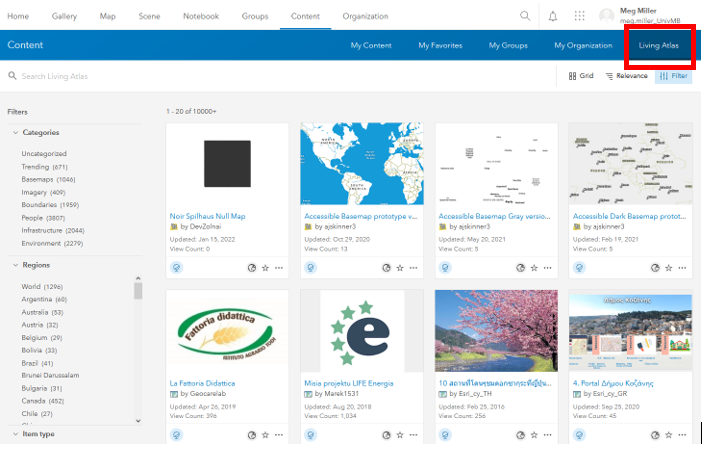
- Available content (items that have been shared to you through groups, University of Manitoba or ESRI’s Living Atlas.)
3. View My Organization data options:
- Click on My Organization in the blue Content navigation bar.
-
This brings up data that has been made available to UM users. Not all content here is available for reuse.
-
Using the search box search for Campus1955_georef , click the title to see more details about the file.
-
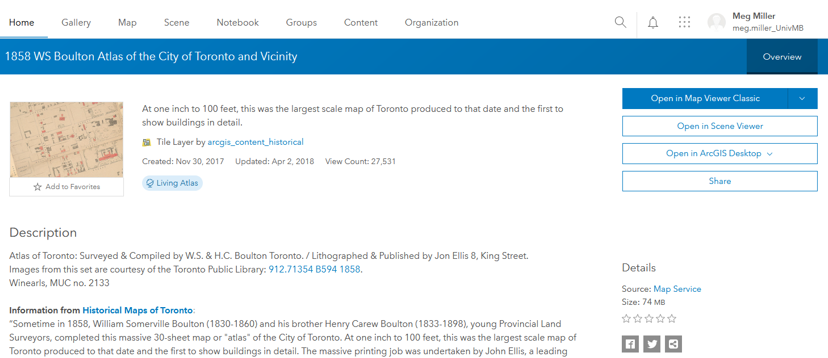
Now we can see a Description and the Terms of Use for the file, as well as options to explore the data further.
-
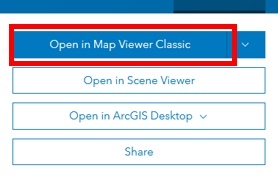
Click on the Open in Map Viewer option.
-
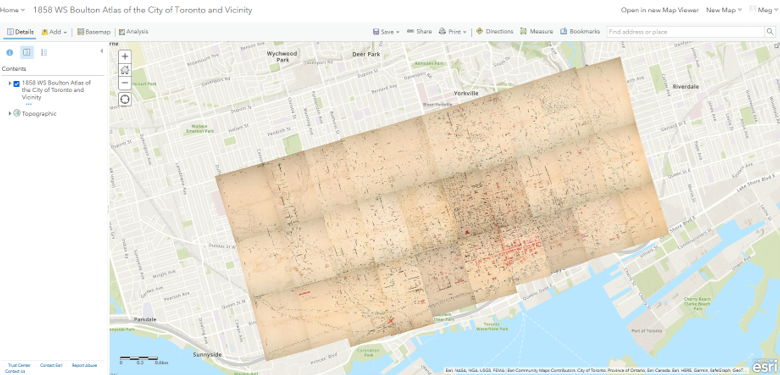
Your screen should now look something like:
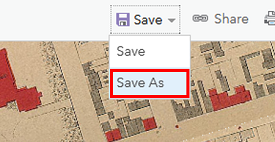
- Save your map by clicking the Save As option left of the map. Your map is now saved to your personal content area.
4. Add data that is accessible via URL:
-
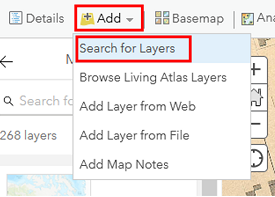
Click on the arrow beside the Add data option on the left of your map. Select the add layer from URL option.
- Copy + Paste this url into the dialogue: https://services7.arcgis.com/qkMZANJ0iIMLiVSJ/arcgis/rest/services/UM_Campus_Planning_Public_Tree_Inventory/FeatureServer
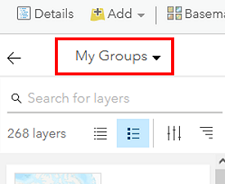
The import wizard should autodetect that it is a web service - Add item to map in the bottom right corner of the wizard.
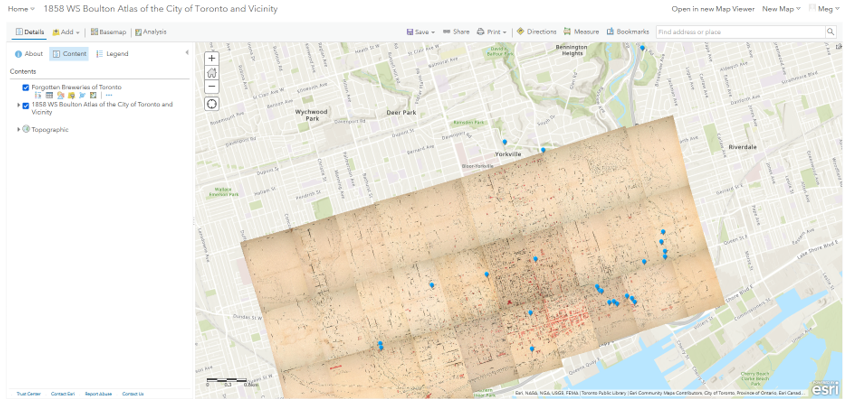
Your map should now look something like:
5. Explore the workspace.
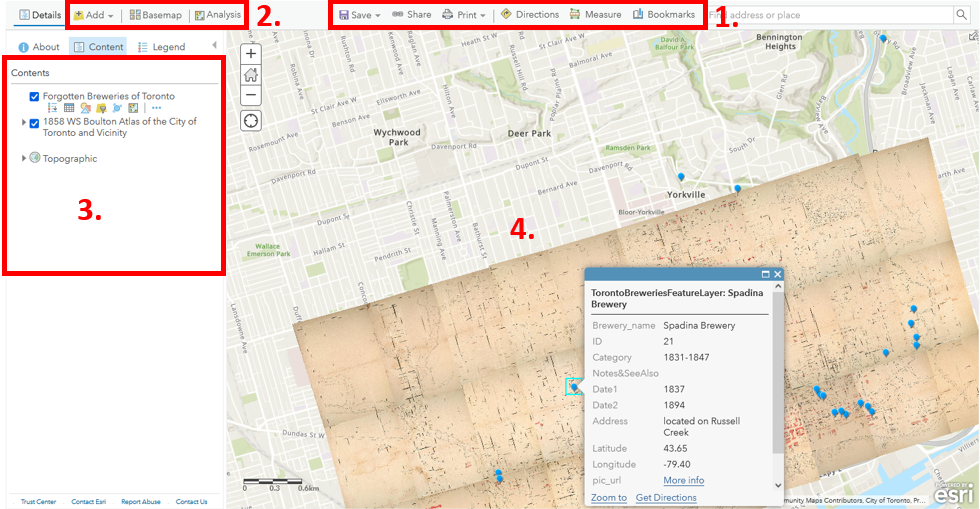
Numbers 1-4 illustrate the locations of the following elements:
- Map options (add data, change basemap, share etc)
- Data options (symbology, filters, pop-ups, labels, conduct simple analyses and more)
- Table of Contents (list of layers in your map, show, hide, table, etc)
- Your map workspace
Take some time to explore the data options on the right side of the page:
- Change the symbol for the tree layer
- Change the transparency of the 1955 plan to see how it compares with campus today
- Filter data to show the oldest trees on campus
- Cluster trees to reduce map clutter
- Look at analysis options
- Explore more options (zoom, transparency, pop-ups, labels…)
Once your map is how you want it, Save your additions by clicking the Save option.
6. Share your map
There are many ways you can share your work with the world so they can explore your work.
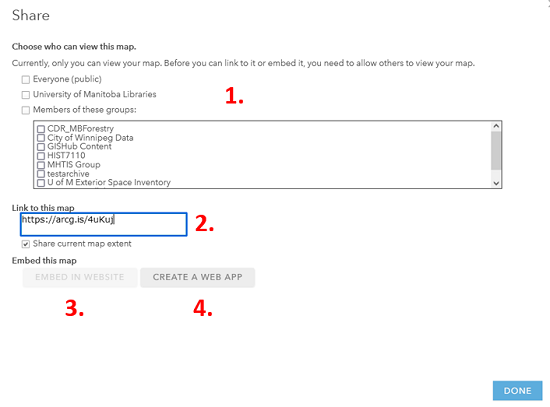
- Click the Share button to the left of your map and explore the options available to you.
Congratulations! You made it through!
Questions? Concerns?